
Guide
Working in the grant editor
When you open a grant you get a full-screen editor with a header, a formatting toolbar, the main writing area, and side panels you can open for requirements, sources, and AI. Content saves automatically as you type; you can also save manually. This guide walks through each part.
The header
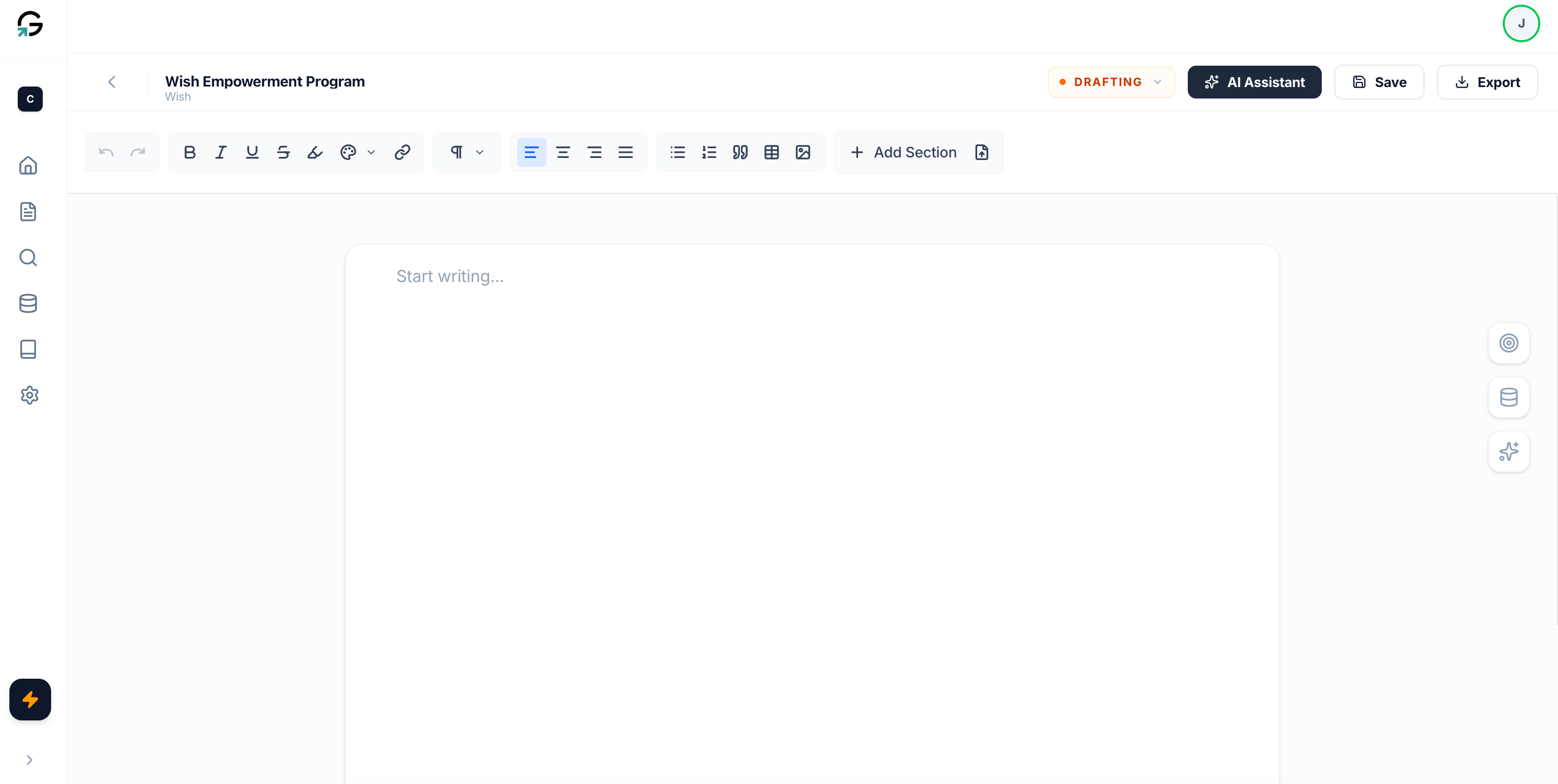
At the top you see the grant title and funder, a back link to the grants list, and the last saved time. In the header you also have:
Status: A dropdown to set the grant stage (Planning, Drafting, In review, Ready, Submitted, Awarded, Declined). Use it to track where the proposal is in your workflow.
AI Assistant: Opens the AI sidebar so you can use Suggestions and the Assistant.
Save: Manually save the document. The editor also autosaves after you stop typing.
Export: A menu to download the proposal as DOCX or PDF. Use this when you are ready to submit outside Grantivo. The file is cleaned of editor-only marks and named with the grant title.
The formatting toolbar
Below the header is a sticky toolbar for formatting the main content. From left to right you get:
Undo and Redo.
Text formatting: Bold, Italic, Underline, Strikethrough, Highlight, Text color, and Link. Use these to style text and add links.
Style: Switch the current block between normal paragraph and headings (e.g. H1, H2, H3).
Alignment: Left, center, right, and justify.
Lists and blocks: Bullet list, numbered list, and blockquote.
Tables and images: Insert a table or an image into the document.
Section template: Insert a pre-built section structure (e.g. for narrative or budget sections) so you can fill in the parts.
Document import: Bring in content from another document so you can reuse or adapt it.
The toolbar scrolls horizontally on small screens so all tools stay available.

The main editor
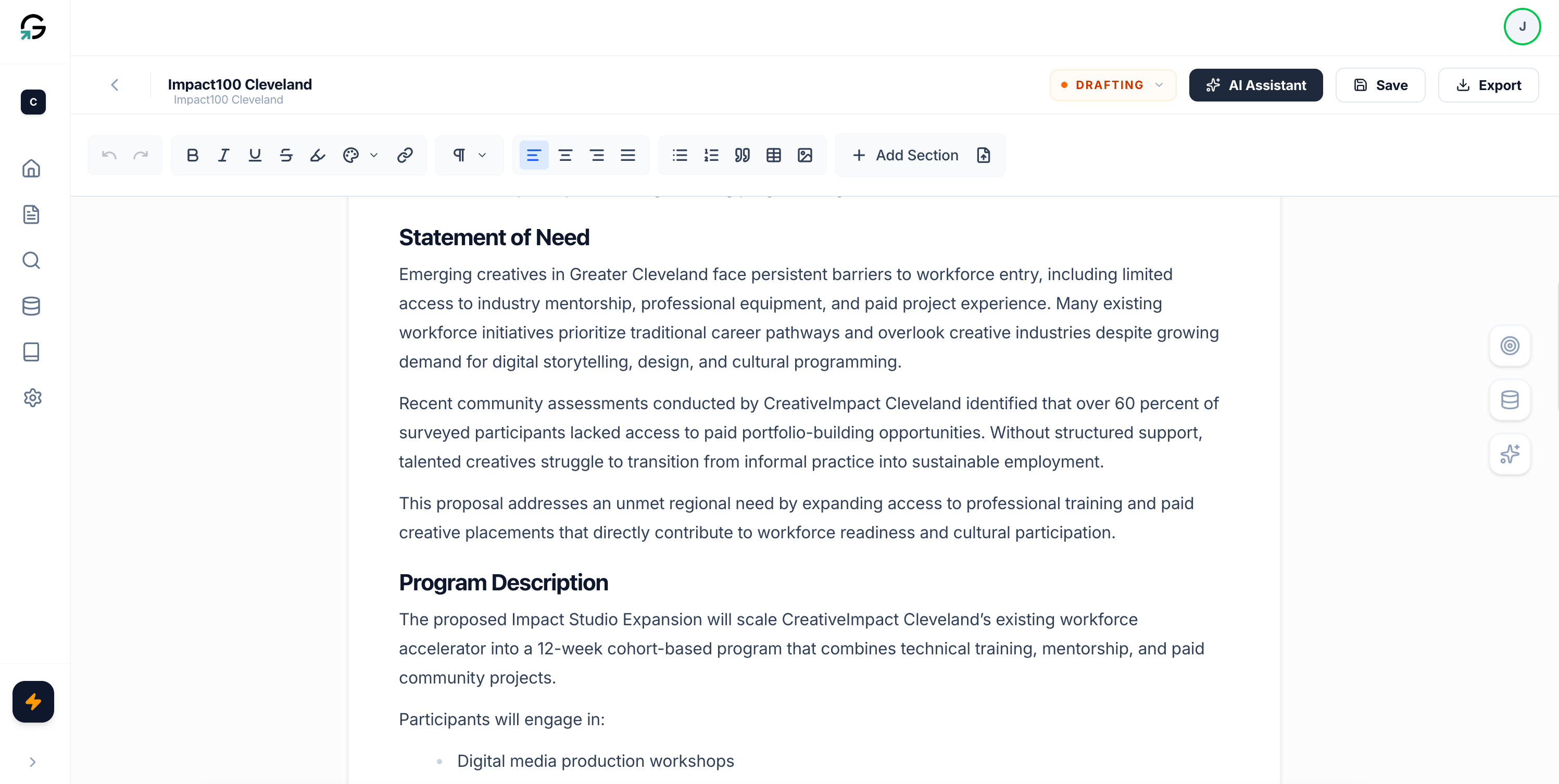
The main area is a large editable canvas. You write and format your proposal here. Changes are saved automatically; you can also click Save in the header. Clicking an AI suggestion in the sidebar can highlight the relevant text in the editor so you can review or apply the change. Use the toolbar above the editor for all formatting and structure.
Side panels: Requirements, Sources, AI
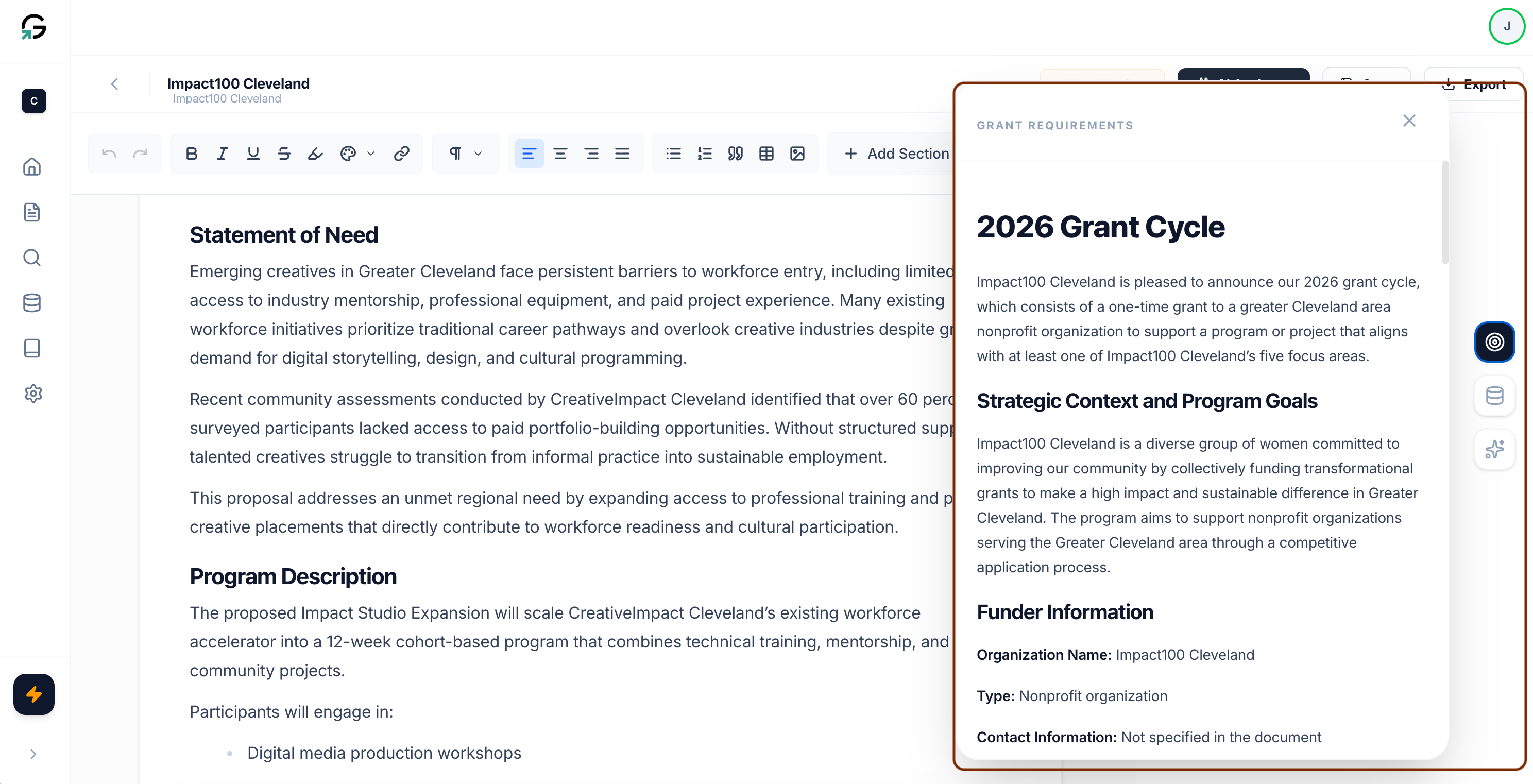
On the right side of the screen there are three floating buttons: Requirements (target icon), Sources (database icon), and AI Assistant (sparkles icon). Click one to open that panel; click again or close the panel to hide it. Only one panel is open at a time.
Requirements: Opens the Grant Requirements panel. It shows the funder requirements and guidelines extracted from your RFP (or that you added when creating the grant). Use this to stay aligned with what the funder asks for while you draft.
Sources: Opens the Grant Sources panel. It lists the documents attached to this grant (e.g. from the Vault or added when you created the grant). Each source has a View Source link to open the file. Sources give the AI and you context for this proposal.
AI Assistant: Opens the Grantivo AI panel with two tabs.
Suggestions: Review and improve writing. Run analysis on your document to get suggestions grouped by category (e.g. correctness, clarity, engagement, delivery). You can expand a suggestion to see the recommended change, apply it to the document, or apply all. Suggestions may highlight the relevant span in the editor. This uses credits.
Assistant: Guidance and drafting. A chat-style assistant that can answer questions about the grant, help you draft or refine sections, and use your grant context. Conversations are saved per grant. This uses credits.
Always review and edit AI output before submitting. Your credit balance is shown in the dashboard sidebar; top up via Settings then Billing if needed.
Status and export
Keep the grant status up to date in the header as you move from drafting to review to ready to submit. When the proposal is ready, use Export to download DOCX or PDF and submit it through the funder’s portal or process.